How to Cancel YouTube TV
The quick way
Let Subtract do the clicking in Chrome. It says no to the pause and stops at the last button.
Cancel with SubtractFree Chrome extension
- Watch until the period ends
- A free trial ends at once
- Recordings kept 21 days after
- Pause 4 weeks to 6 months
Do it yourself: cancel YouTube TV online
Use a web browser. The base plan and add-ons are all on one Membership page. Open YouTube TV membership →
Open tv.youtube.com and select your profile photo. Sign in first.
Go to Settings › Membership and select Manage. Next to your base plan, or next to an add-on to drop only that.
Select Cancel membership. Say no to the pause offer and confirm Cancel.
Pause instead
Pause, on the same Manage screen: 4 weeks to 6 months, starting after this billing cycle. Recordings are kept; the normal price resumes after.
Billed by someone else?
Got it through Apple (in the iPhone app) or another provider? Cancel with them. Apple: Settings › your name › Subscriptions › YouTube TV › Cancel Subscription.
A few things to keep in mind
- Coming back later? Promotional prices and old recordings may be gone.
- Want access gone right away? Contact YouTube TV support.
Common questions
Do I lose YouTube TV right away?
No, you keep it until the paid period ends. A free trial, add-ons included, ends as soon as you cancel.
What happens to my recordings?
They expire 21 days after the paid period ends. Pausing keeps them.
Not sure what else you're paying for?
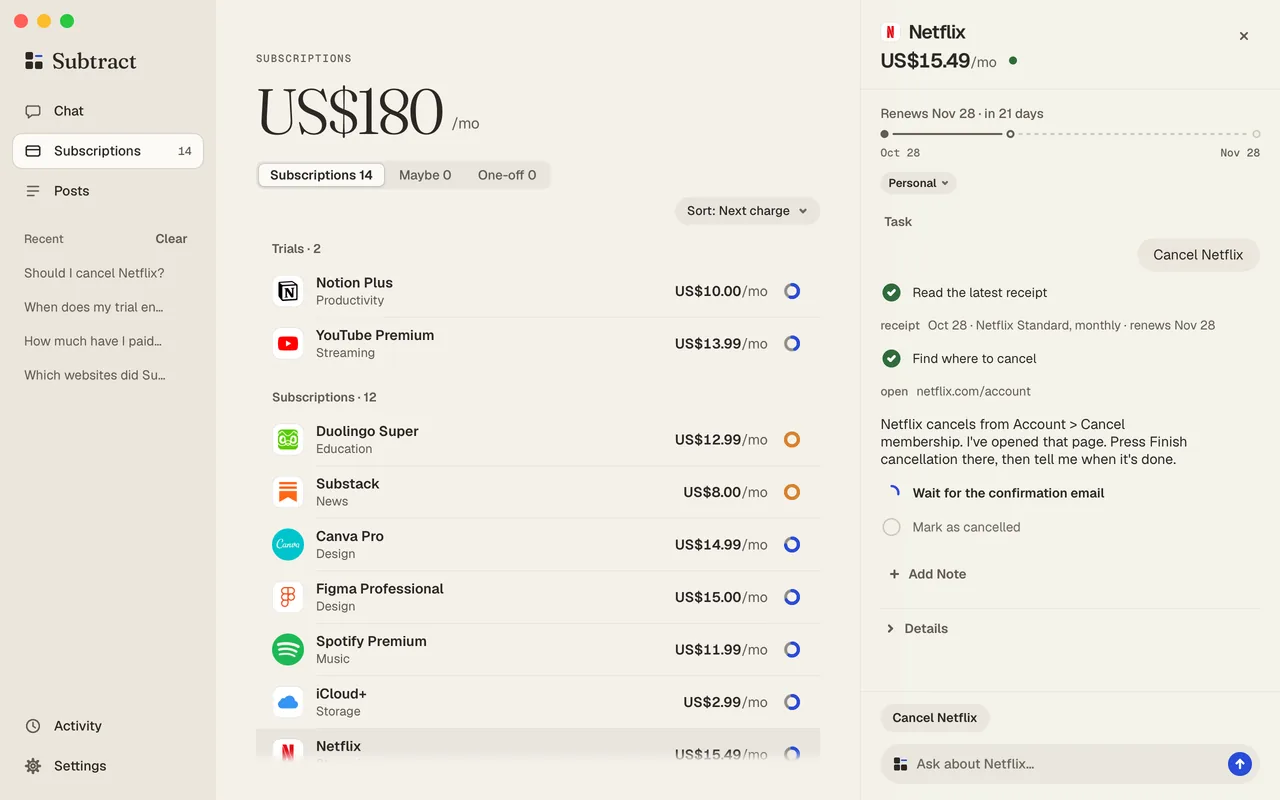
Subtract is a Mac app that finds every subscription in your mail receipts and helps you cancel them, with the AI and your data staying on your Mac.
Sources: YouTube TV Help ("Cancel or pause your YouTube TV membership"), read November 25, 2026. If Google or YouTube has changed a step since, their page is right. Subtract is not affiliated with Google or YouTube.